Connect a device
Approve a computer with the device code flow, reconnect an agent, and manage your fleet.
A computer must be approved by an authorized user before it can belong to an organization. The device displays a simple 8-character code, you approve it in the web dashboard, and the device connects automatically.
Before you begin
- An active subscription for the organization. Without one, the register page
redirects away. Note that every active subscription requires a minimum quota of 1 agent (
max_agents >= 1). - You must be a member of the organization you want to bind the device to.
- The organization must have an available agent slot within your subscription limit. Check the Registered counter at the top of the Agents page.
Step 1 — Start from the device
- Open the PackVision app on the device and go to the Connect screen.
- Copy the 8-character device code shown on screen (for example
AB-CD-EF-GH). - Select the link to open the registration page. It opens
/app/register-agent?code=...in the dashboard.
The device code expires after 30 minutes. The device polls every 5 seconds while it waits for approval.
Step 2 — Approve in the dashboard
The register page shows the active organization with its seat and online counters on the left, the device code, and the agent choice on the right.
- Make sure the correct organization is active in the sidebar switcher.
- Enter or confirm the device code in the Device Code field.
- Choose Select Existing to bind to an agent you already created, or Create New and give the agent a name.
- Select Approve.
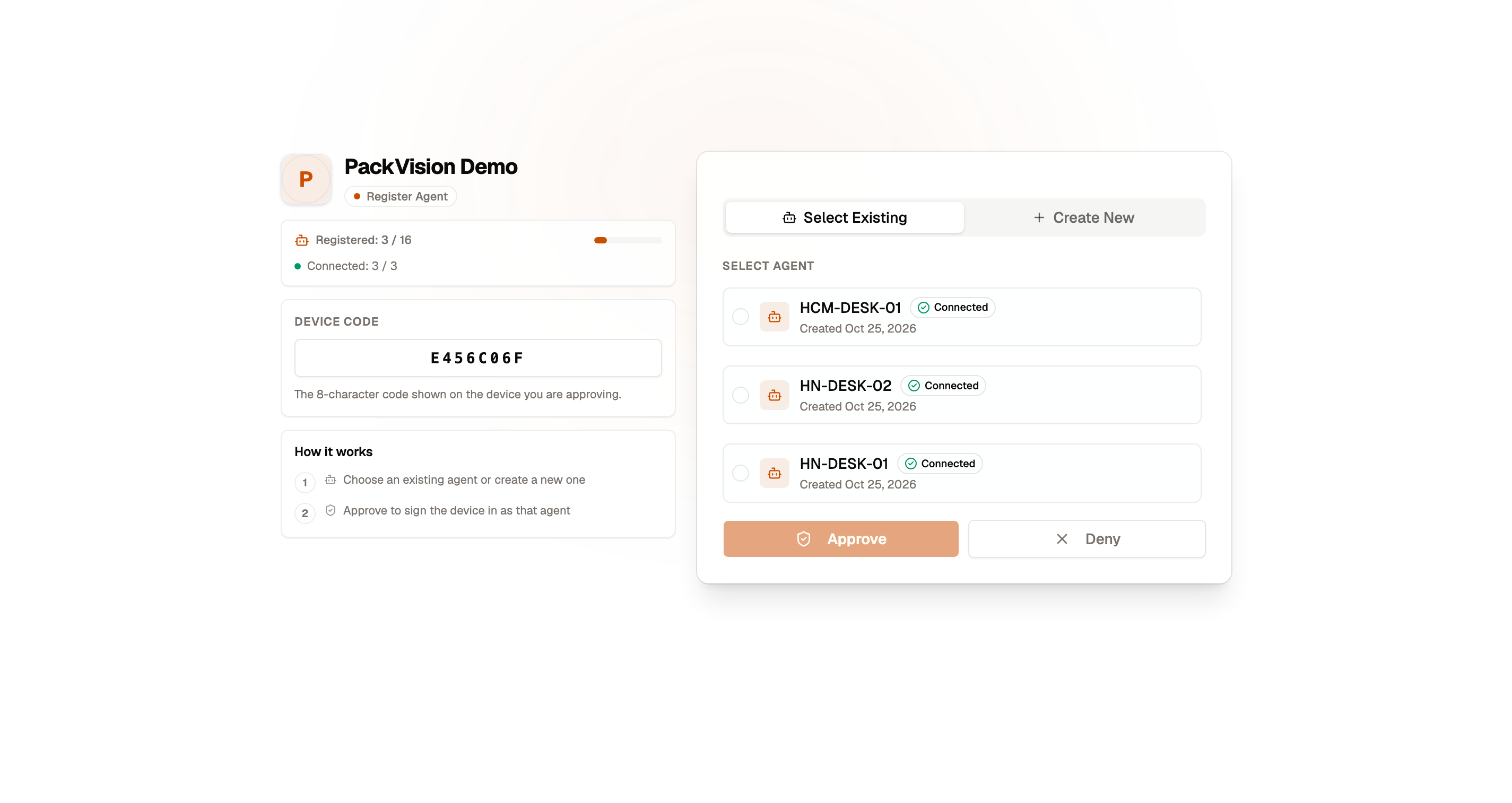
To reject the request instead, select Deny. The device will report that the authorization was denied.
Agents that are already online
Agents currently signed in show a green Connected badge. Selecting one shows a warning, because an agent can only serve one device at a time:
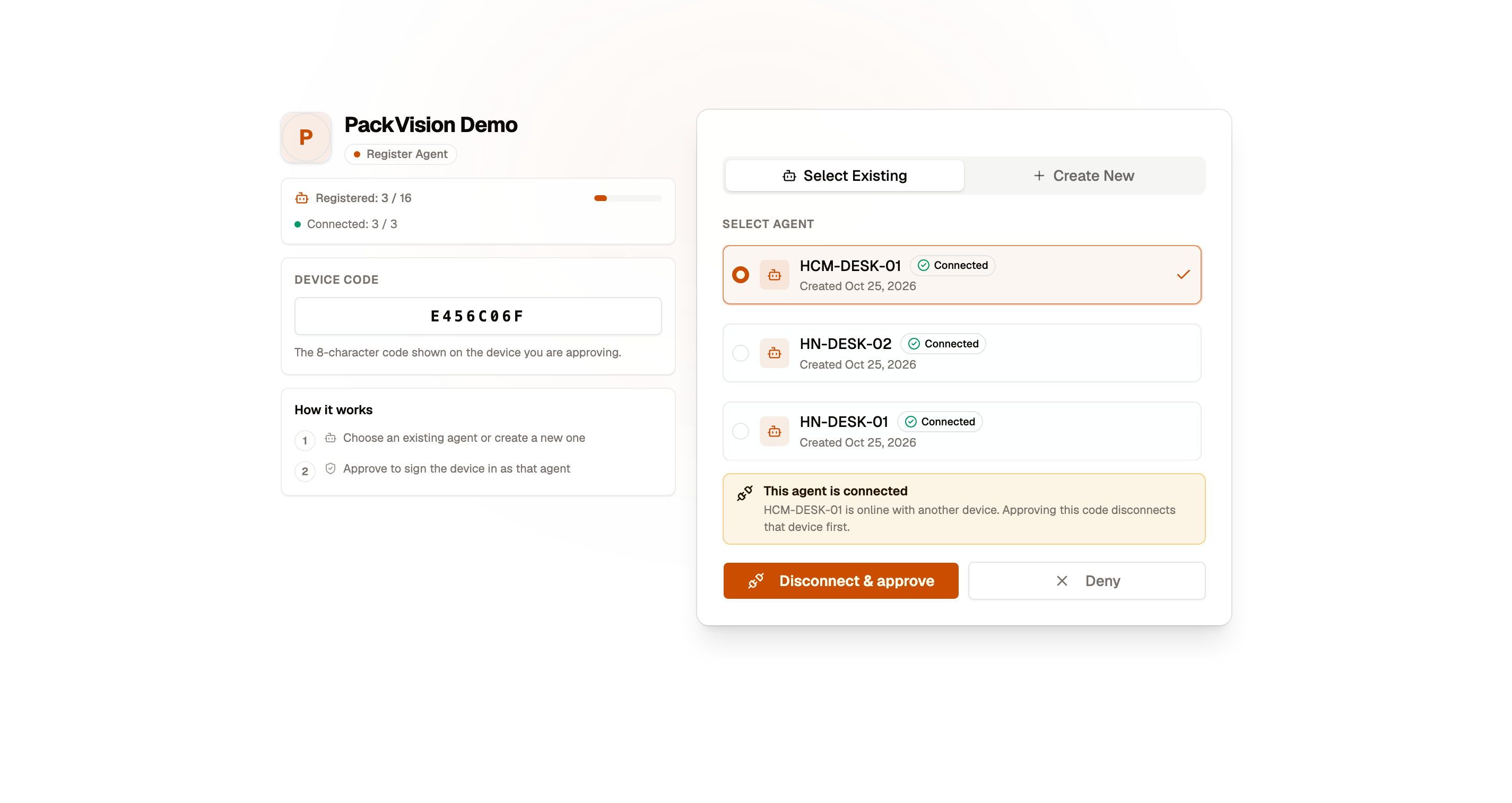
- The button changes to Disconnect & approve.
- A confirmation asks you to disconnect that agent.
- Confirm, and the current device for that agent is signed out before the new device is approved. The old device must be approved again if it should return.
Step 3 — The device signs in
Once approved, the device exchanges its code for a session and connects. The Connect screen changes from Waiting for approval… to connected.
Managing agents & KPI overview
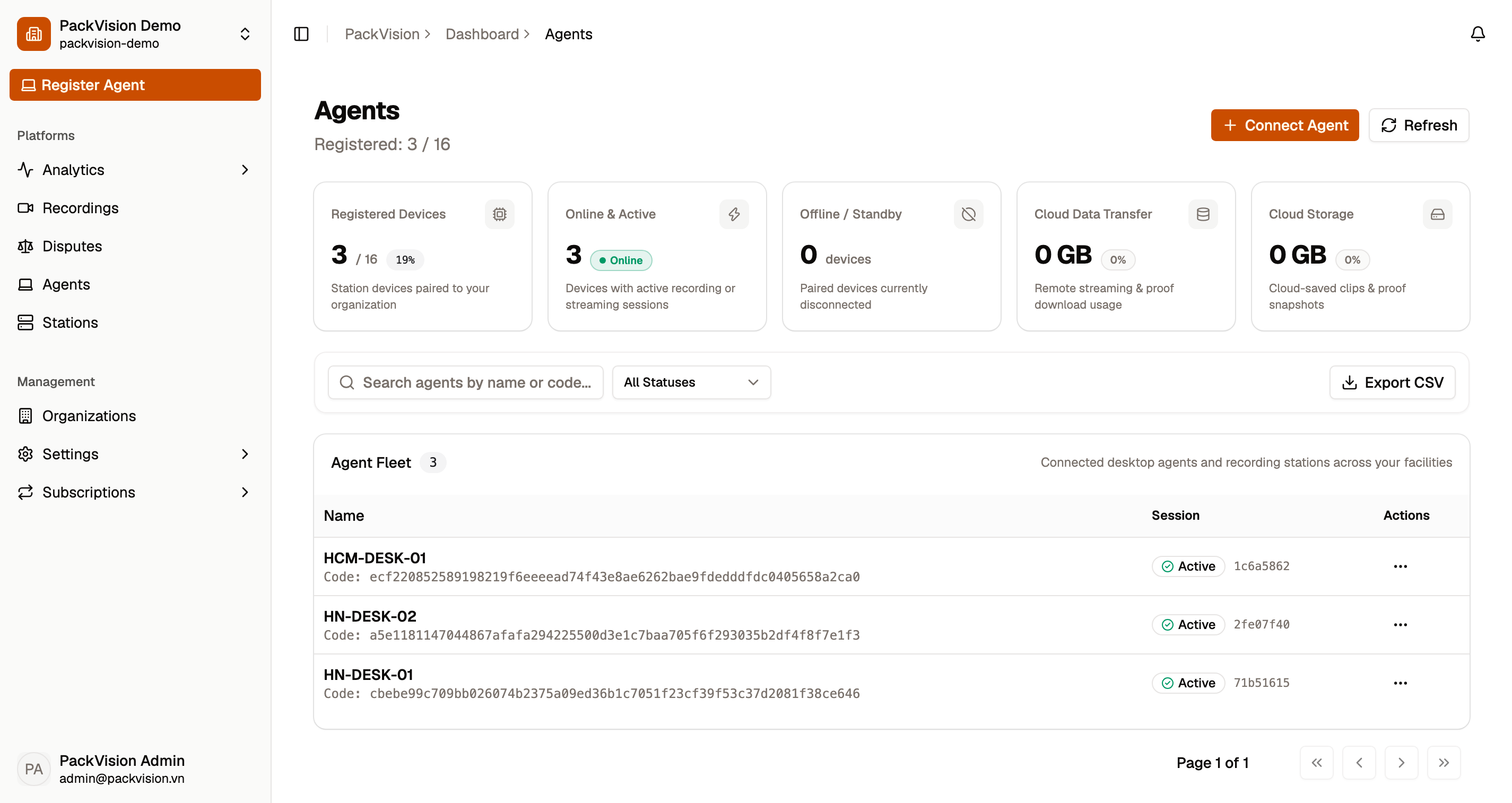
Open Agents in the dashboard to review your fleet:
The Agents KPI strip at the top displays:
- Registered Devices — agents registered vs. your organization's
max_agentssubscription limit. - Online & Active — agents currently connected and communicating.
- Offline / Standby — agents not currently sending heartbeats.
- Cloud Data Transfer — remote streaming bandwidth used against your included quota.
- Cloud Storage — persistent cloud storage consumed against your included quota (5 GB free).
Use the toolbar to search by name or device code, filter by status (Connected or Offline), clear filters, refresh, or Export CSV.
In the agent table, you can:
- Rename an agent or update notes.
- Revoke an agent to invalidate its session without deleting its stations or local data.
- Delete an agent permanently.
Revoking signs the device out
Revoking an agent ends its session. The hardware must be approved again before it can rejoin.
Troubleshooting
| Symptom | Cause | Fix |
|---|---|---|
| The register page is not available | No active subscription | Activate a subscription |
| Limit Reached | All agent slots are used | Increase max_agents in your subscription or remove an unused agent |
| Device code not found | Wrong code or it was already used | Reopen the Connect screen and use the current code |
| Device code expired | More than 30 minutes passed | Restart the device to generate a new code |
| Authorization denied | The request was denied in the dashboard | Approve the device again |
| Another device is signed in | The agent was still online | Approve again and confirm Disconnect & approve |
See Errors & troubleshooting for the full list.