Subscriptions
Choose a plan, understand the limits, configure quotas, and manage renewals.
A subscription sets the limits for an organization. Without an active subscription, devices cannot stream, new recordings cannot be initiated, and members cannot be invited.
What a subscription controls
Each subscription includes four configurable dimensions:
| Limit | Minimum | Free allowance | Meaning |
|---|---|---|---|
| Max agents | 1 | None | How many station desktop agents can be registered simultaneously (minimum 1 required). |
| Max members | 1 | 1 seat (Owner) | How many team member seats can join the organization. |
| Max data transfer | 1 GB | 1 GB free | How much server streaming bandwidth (in GB) you can use per billing cycle. |
| Max data storage | 5 GB | 5 GB free | How much durable cloud storage (in GB) you can use for saved evidence clips. |
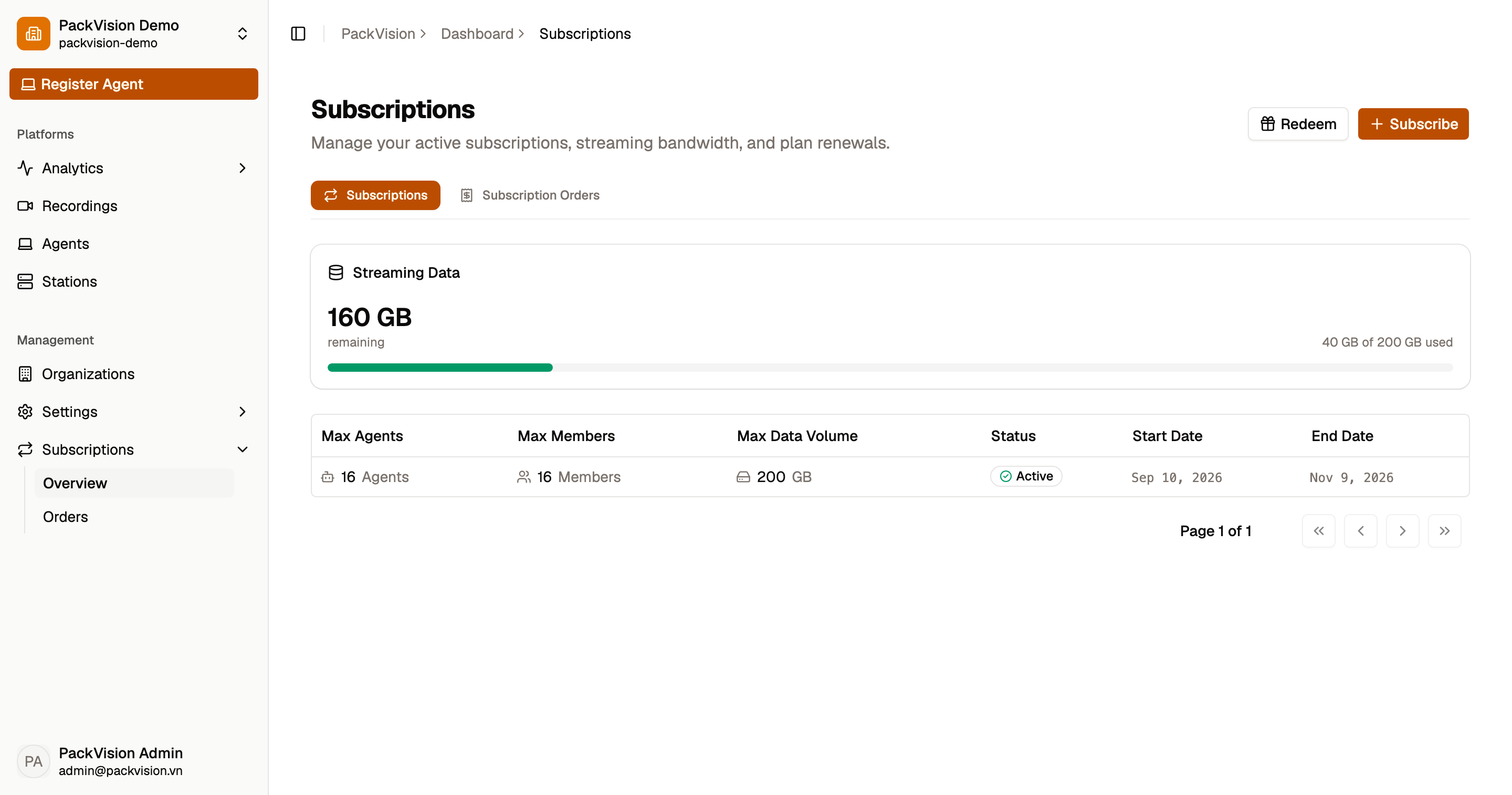
Every plan requires at least 1 agent, and automatically includes the organization owner seat plus baseline free allowances (1 GB data transfer and 5 GB cloud storage) so you can begin operations right away.
Subscription status
| Status | Meaning |
|---|---|
| Active | Everything works normally. Quota badges display real-time usage across the dashboard. |
| Grace | Expired, with a short grace period. A banner shows Subscription Expired — Grace Period Active with a renew action. |
| Expired | Server streaming, new recordings, cloud saves, and invites are blocked until you renew. |
Expiry is evaluated when you make a request, not by a scheduled job, so the status updates as soon as it changes.
Subscribe or change your plan
- Open Subscriptions and select Subscribe.
- On the pricing configuration page, specify your desired limits:
- Max agents (must be at least 1)
- Max members
- Data transfer (in GB)
- Cloud storage (in GB) Volume tiers automatically apply scale discounts to your monthly total.
- Review the subscription summary breakdown and select Subscribe & pay.
- Complete payment by scanning the dynamic VietQR code with your mobile banking app. The subscription activates automatically once payment is confirmed by the payment webhook.
One active subscription at a time
If the organization already has an active subscription, you cannot buy another. You can renew or adjust once it expires or during the grace period.
Subscription orders & history
You can track all pending, confirmed, and historical subscription transactions under Subscriptions → Subscription Orders (/app/subscriptions/orders). Each order record details:
- Order ID and creation timestamp.
- Plan limits breakdown (agents, members, data transfer, cloud storage).
- Total amount and VietQR transaction status.
See Invoices & billing details for corporate invoicing requirements.
Redeem a code
If you received a promotion or gift code:
- Open Subscriptions and select Redeem code.
- Enter the code and submit. You will see Code redeemed successfully!
If you arrived through a referral link, an activation banner may prompt you to claim an introductory promotional credit.
Cancellation and expiry
- Subscriptions can be deactivated by an administrator, which ends them immediately and is not reversible.
- When a subscription expires, devices are not signed out — they simply cannot stream or start new recordings until it is active again. Recordings already on the device can still be viewed locally.
What is not affected by expiry
- Signing in — authentication never depends on the subscription.
- Local playback of existing recordings — videos already written to the station's disk remain viewable locally even after the subscription expires.
- Local playback — watching videos directly on your facility's local network does not count toward data transfer.
Starting a new recording, live streaming, cloud saving, and server streaming playback require an active subscription or the grace period.
Next steps
- Invoices & billing details — invoice configurations and payment orders.
- Team & members — managing seats within your member quota.