Team & members
Invite members, assign roles, and manage seats.
Manage your team under Settings → Team. The page is available to Admins and Owners for changes; members can view it.
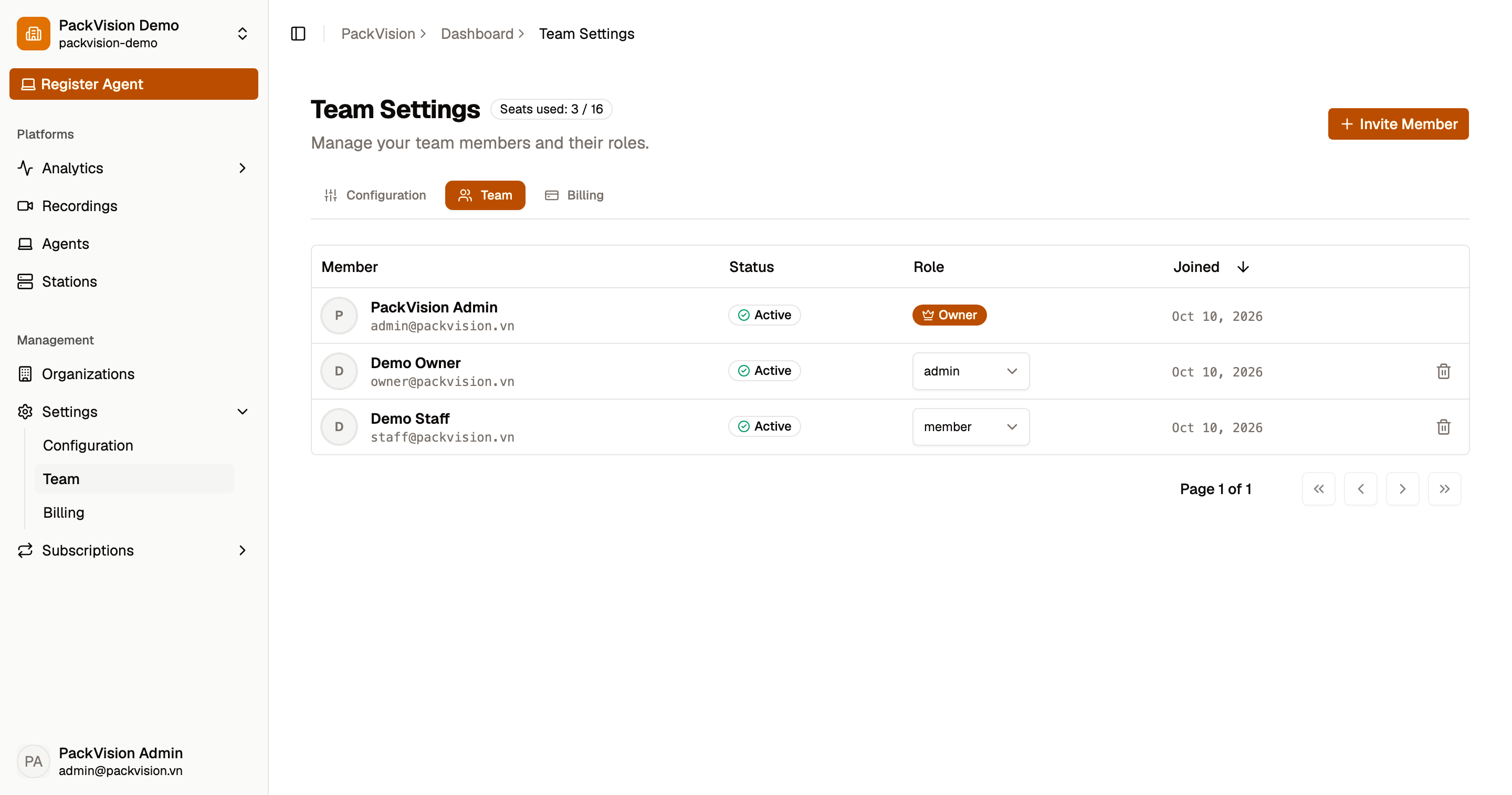
Invite a member
- Select Invite member.
- Enter the person's email and choose a role: Member, Admin, or Owner.
- Send the invitation.
The invitee receives an email. If they are new, they create an account and then accept the invitation. If they are already signed in, they can accept or decline from the invitation page.
Seats and limits
The page shows Seats used: `{used}` / `{limit}`.
- The organization owner seat is always included free.
- Additional seats count toward your subscription's
max_memberslimit. - When the limit is reached, an alert appears:
Member Limit Reached
You have reached the maximum number of member seats for your plan. Select
Upgrade plan to increase max_members.
Manage members
| Action | Notes |
|---|---|
| Change role | Admins and owners can change a member's role. |
| Resend invitation | Resend a pending invitation email. |
| Remove | Removes a member or cancels a pending invitation. |
Removing a member asks:
Are you sure you want to remove {email}?
Owners cannot be removed blindly
PackVision will not let you remove the last owner of an organization.
Invitations
Invitations have a status: Pending, Accepted, or Canceled. You can cancel a pending invitation at any time; the invitee can also decline it.
Next steps
- Subscriptions — raise your member limit.
- Account & security — manage your own profile.