Organizations
Create, switch, edit, and delete organizations.
An organization is the top-level container for your agents, stations, members, recordings, and subscription. Everything you do happens inside the currently active organization.
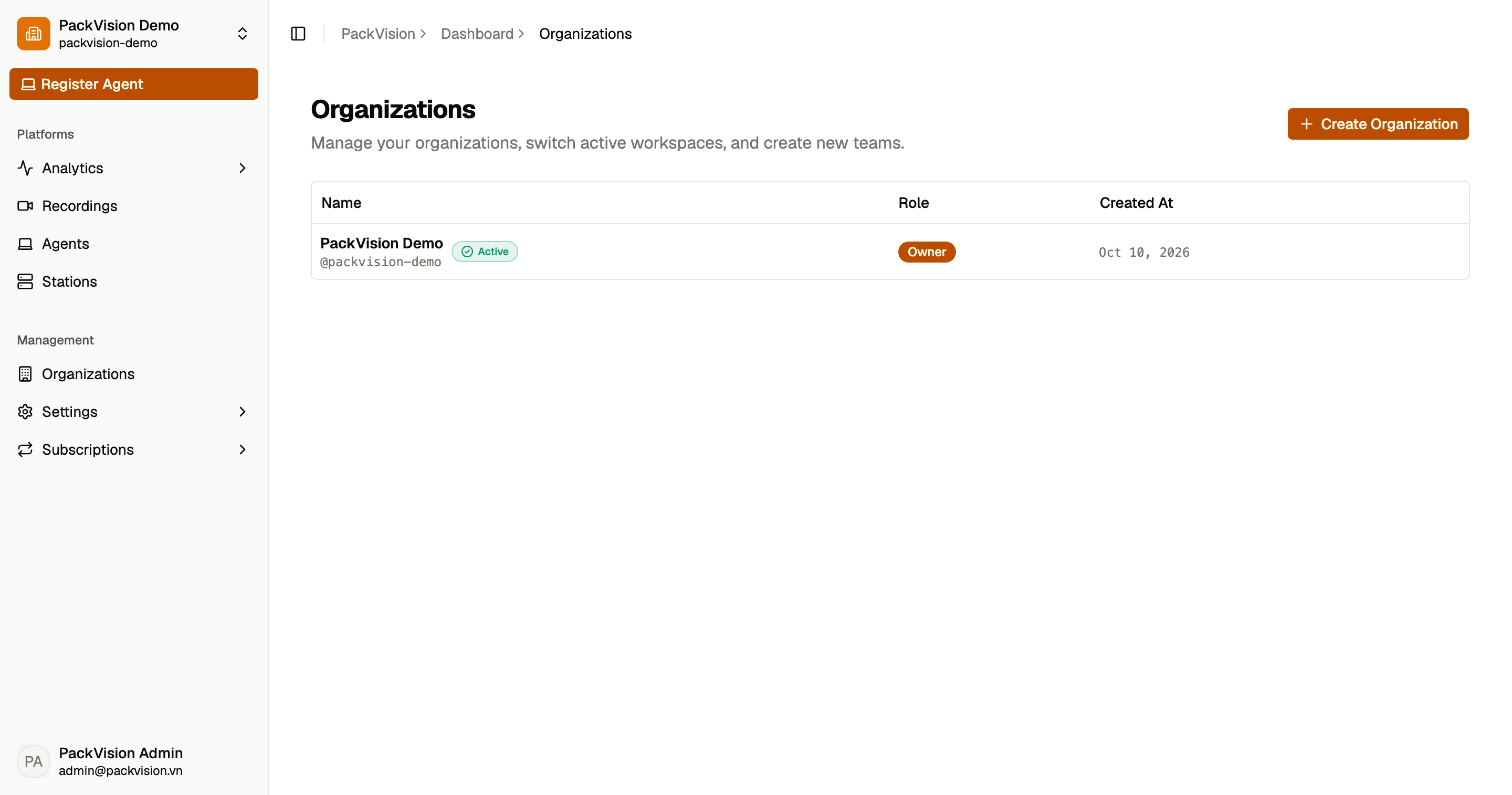
Create an organization
- Open Organizations.
- Select Create organization.
- Enter a name. A URL slug is generated automatically.
- If you have a promotion or gift code, you can add it at creation time.
Switch the active organization
Use the organization switcher in the sidebar. Switching reloads the app in the context of the selected organization.
The active organization matters
A device can only act on an organization once it has an active organization in its session. Before you approve a device or invite a member, confirm the correct organization is selected.
Edit an organization
- Open Organizations and select Edit.
- Change the name or the slug.
The slug appears in URLs. It must be unique and may contain only lowercase letters, numbers, and hyphens.
Organization settings
For logo and advanced configuration, open Settings → Configuration. Only admins and owners can access it.
Delete an organization
- Open Organizations and select Delete.
- Confirm the warning:
All memberships will be removed and you will be switched to your remaining organization.
You cannot delete your only organization — You must have at least one organization.
Roles
Each member has a role in the organization:
| Role | Can do |
|---|---|
| Owner | Everything, including billing. |
| Admin | Manage members, stations, and configuration. |
| Member | Use the platform and view recordings. |
See Team for how roles are assigned.
Next steps
- Team — invite members.
- Subscriptions — activate a plan for this organization.